
How to Track Which Google Ads Leads Convert into Customers
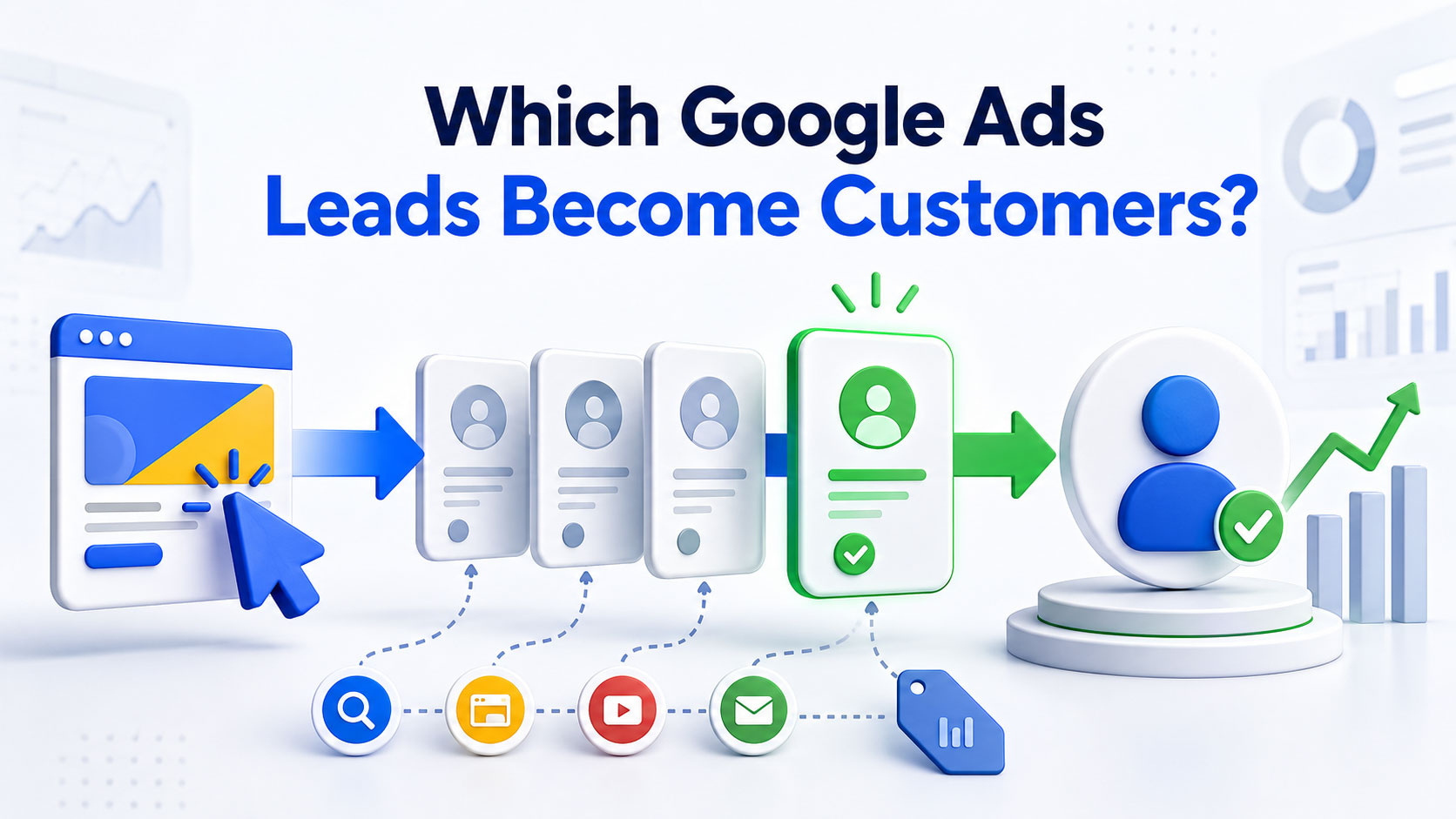
Do you ever wonder how to capture which Google Ad visitors lead to the actual jobs when you don’t have a tracking installed? And return that data back to Google Ads to train its algorithm to find you similar leads?
Most tracking software costs at least £xxx a month. What if I tell you there is an absolutely free way of doing this?
This is sort of an advanced topic used by experts to capture all visitors data and see which visitors called and which calls converted into actual paying leads/jobs.
All you need is Google Tags installed on your website, and a Google Spreadsheet.
Let’s say you are a plumbing company and running Google Ads. The landing page is your website where you have a “Click to Call” button and a “Whatsapp button”.
When a visitor come to your website, they click on call or whatsapp button to contact you.
Let’s say 10 people called you and only 5 converted to an actual paid job.
You don’t know which ones converted.
You need a way to find which 5 converted and give this data back to Google so that it’s algorithm can find similar paying customers for your business.
Here is how to do it.
-
Create a Google Spreadsheet, change the Sheet name from “Sheet1” to “Clicks”, and add some columns to it.
For your convenience, I have created a sample Spreadsheet, just copy the columns from it. Here is the link https://docs.google.com/spreadsheets/d/19Sbojv1hI2JmMNVbIdwlcGL3YXTi1-PxDWas7B5yFfc/edit?usp=sharing -
Next while your sheet is opened, go to Extensions -> Apps Script. It will open a new window with following text
function myFunction() {}
Delete above text and instead copy following script.
function doPost(e) {
console.log("POST received");
console.log(e.postData.contents);
try {
const sheet = SpreadsheetApp.getActiveSpreadsheet().getSheetByName("Clicks");
const data = JSON.parse(e.postData.contents);
sheet.appendRow([
new Date(),
data.event_type || data.click_type || "",
data.gclid || "",
data.gbraid || "",
data.wbraid || "",
data.page_url || "",
data.referrer || "",
data.clicked_url || "",
data.user_agent || "",
data.session_id || "",
data.visitor_id || "",
data.page_title || "",
data.previous_page || "",
data.button_text || "",
data.time_on_page_seconds || ""
]);
return ContentService
.createTextOutput(JSON.stringify({ status: "success" }))
.setMimeType(ContentService.MimeType.JSON);
} catch (error) {
return ContentService
.createTextOutput(JSON.stringify({ status: "error", message: error.toString() }))
.setMimeType(ContentService.MimeType.JSON);
}
}
function doGet(e) {
return ContentService
.createTextOutput("Clicks logger is working")
.setMimeType(ContentService.MimeType.TEXT);
}
Just copy as it is, no need to change anything.

Next step is to click on Deploy on top right then New Deployment. It will open a new window

Click Select Type -> Web App, you will see this window

Change “Who has access” to “Anyone” and give it a name in Description and click Deploy.
You will see following screen after

Click on Authorise access, it will give you following screen

Click Advanced -> Go to project (unsafe) then click continue on next screen to give access.
Once this is deployed you will see following screen.

Don’t close it, leave it open or copy Web app URL, we will need it in the next step.
Next go to Google Tags Manager for your websites container and go to Tags. Click to add a new tag, give it some name, click on Tag Configuration and select Custom HTML Tag.
In the HTML window, add following script and replace WEB_APP_URL key with your key that you saved earlier from Google Sheets App Script.
<script>
(function() {
var WEB_APP_URL="https://script.google.com/macros/s/AKfycbyK_RXvdA3F2xKMi5iL_kJcntWfgLOTqUq9bcktZeIf1i6MEMnkBYw0Ca7_0W0RDj7-/exec";
var currentUrl = window.location.href;
if (
currentUrl.indexOf("gtm-msr.appspot.com") > -1 ||
currentUrl.indexOf("tagassistant.google.com") > -1 ||
currentUrl.indexOf("googletagmanager.com") > -1
) {
console.log("Journey logging blocked for GTM preview/render page");
return;
}
function uuid() {
if (window.crypto && crypto.randomUUID) return crypto.randomUUID();
return "id-" + Date.now() + "-" + Math.random().toString(36).substr(2, 9);
}
function getParam(name) {
return new URLSearchParams(window.location.search).get(name) || "";
}
function getOrCreate(key, storage) {
var value = storage.getItem(key);
if (!value) {
value = uuid();
storage.setItem(key, value);
}
return value;
}
var visitorId = getOrCreate("visitor_id", localStorage);
var sessionId = getOrCreate("session_id", sessionStorage);
var pageStartTime = Date.now();
var previousPage = sessionStorage.getItem("previous_page") || "";
["gclid", "gbraid", "wbraid"].forEach(function(id) {
var value = getParam(id);
if (value) {
localStorage.setItem(id, value);
sessionStorage.setItem(id, value);
}
});
function getStored(id) {
return sessionStorage.getItem(id) || localStorage.getItem(id) || getParam(id) || "";
}
function sendEvent(eventType, extra) {
extra = extra || {};
var payload = {
event_type: eventType,
gclid: getStored("gclid"),
gbraid: getStored("gbraid"),
wbraid: getStored("wbraid"),
page_url: window.location.href,
referrer: document.referrer,
clicked_url: extra.clicked_url || "",
user_agent: navigator.userAgent,
session_id: sessionId,
visitor_id: visitorId,
page_title: document.title,
previous_page: previousPage,
button_text: extra.button_text || "",
time_on_page_seconds: Math.round((Date.now() - pageStartTime) / 1000)
};
navigator.sendBeacon(
WEB_APP_URL,
new Blob([JSON.stringify(payload)], { type: "text/plain" })
);
console.log("Sent event:", payload);
}
sendEvent("page_view");
sessionStorage.setItem("previous_page", window.location.href);
document.addEventListener("click", function(e) {
var link = e.target.closest("a, button, [role='button']");
if (!link) return;
var href = link.getAttribute("href") || "";
var text = (link.innerText || link.textContent || "").trim();
var combined = (href + " " + text + " " + (link.className || "")).toLowerCase();
if (href.indexOf("tel:") === 0 || combined.indexOf("call") > -1 || combined.indexOf("phone") > -1) {
sendEvent("phone_click", {
clicked_url: href,
button_text: text
});
}
if (combined.indexOf("whatsapp") > -1 || combined.indexOf("wa.me") > -1 || combined.indexOf("api.whatsapp.com") > -1) {
sendEvent("whatsapp_click", {
clicked_url: href,
button_text: text
});
}
}, true);
})();
</script>
In Triggering, add All Pages so this script triggers on all pages.
THATS IT.
Publish Workspace changes and from now on all the visitors who come to your website and click on Phone, Whatsapp or view any pages will be logged in the Google Sheet like below.

You know now which customers called at which times. You also know their GCLID which you need to give back to Google Converted Leads Action so Google knows it.
Next is to connect this sheet to your conversion action in Google Ads.

Comments
Leave a comment